Adding Task Monitor cards to the dashboard
Your cards, card configurations, and dashboard layout persist until you change them. The settings remain intact after you sign out and are available on your dashboard when you sign in again.
By default, when you add a Task Monitor card to the dashboard, the card is formatted as a large card. The resizing options are disabled since this card only supports large cards.
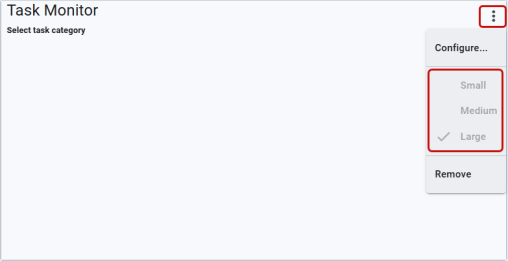
Use the following procedure to add a Task Monitor card to your dashboard:
-
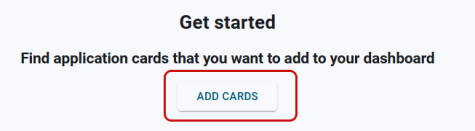
Click the Add Cards button on the dashboard. This option is only available when there are no cards on the dashboard.
Or
Select Actions menu (
 ) in the page header and then select Add.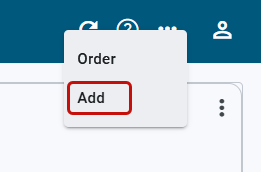
-
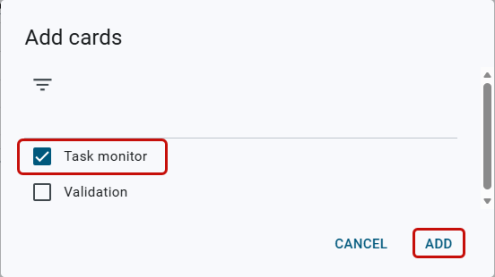
The Add cards dialog appears. Select Task monitor and click Add. In this example, the user has Validation Queue and View Task Template permissions.
-
To configure the card, select Actions menu (
 ) on the card and then select Configure.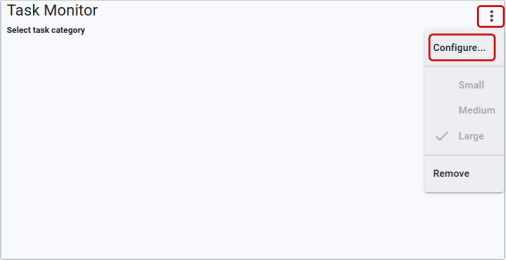
-
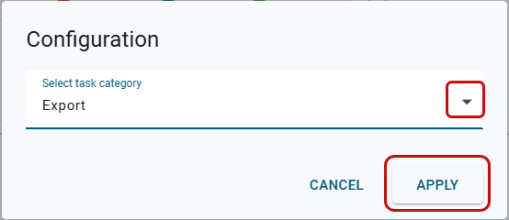
In the Configuration dialog that appears, select a task category from the dropdown menu and click Apply.
The selected category and the data for the selected category appears on the card. The card contains the applicable task statuses (Failed, Warning, Error, Other, and Success) for a week of data (the current day plus the six previous days).
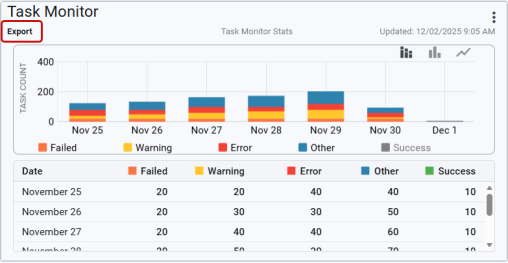
Note: By default, the Success status does not appear on the chart. Clicking the Success legend adds the status to the chart.
Related topics: